
Claude Code for Non-Coders: get comfy with the terminal
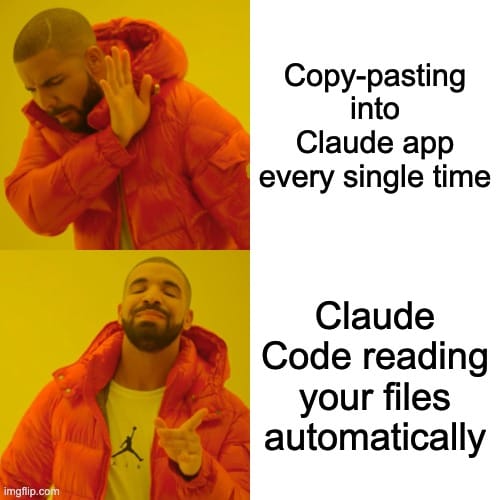
Last Thursday at 3pm, I coached a PM through her first 30 minutes in Claude Code. She'd never touched a terminal. By minute 7, she stopped being scared. By minute 20, she was synthesizing customer feedback across 12 call notes—something that used to take her half a day. By minute 30, she stopped asking permission to try things.
This isn't a coding tool. It's Claude, living on your computer. And once you see what it can do with your files, your meeting notes, your backlog of half-finished docs... you won't go back to copy-pasting into chat windows.
The Naming Problem
Claude Code shouldn't be named Claude Code.
The name scares PMs, analysts, and business folks. Recently, political analyst Matt Yglesias tweeted his shock at discovering Claude Code "is NOT just for developers." He's right to be surprised—and he's not alone. Most people see "Code" and think "not for me."
But here's what Anthropic actually shipped: browser automation, reading your files, persistent memory. The name is misleading. The capability is real.
Forget the name. Think "Claude Local"—an AI that lives on your computer and works where you work.
Three Ways to Use Claude
1. Claude in the app (what you probably already use)
You're having conversations. Writing summaries. Getting help with meeting recaps. It's chat, but smarter. No setup beyond your account. Best for quick questions and back-and-forth thinking.
2. Claude in Chrome (browser automation, no terminal required)
This one's newer. Claude lives in Chrome's side panel. It navigates websites, clicks buttons, fills forms. Think of all the repetitive browser work you do—competitive research, data entry, copying information from one system to another. Claude can do that while you watch.
Best for: Repetitive browser work. And here's the key—if you're terminal-averse, you can stop here. Path A. You'll save hours weekly from Chrome automation alone.
3. Claude Code (the terminal tool)
This is the full capability. Claude reads your local files without copying and pasting. Processes entire folders at once. Creates and edits files directly. Connects to Jira, Notion, databases.
Best for: Working with files and multi-step workflows. Path B for folks comfortable copy/pasting commands. This unlocks everything.
The Real Difference
File access and persistent memory.

When you ask chat Claude to "analyze my meeting notes," you copy-paste them. Token limits. Context loss. Tedious.
When you ask Claude Code to "read my meeting notes from this week," it actually reads them from your computer. No pasting. No limits. It remembers what you worked on yesterday.
Both paths are valid. If you only want browser automation, you never have to touch the terminal. If you want the full system—file operations, memory, integrations—the setup takes 5 minutes of copy/pasting commands.
Helen Lee Kupp (from Lenny's article): "I'm a mom who voice-records ideas during morning stroller walks, not a developer. The terminal interface? Overwhelming at first. But I discovered Claude Code isn't about coding at all."
Teresa Torres (product discovery expert): "Using Claude Code isn't about being technical. It's about being willing to try three to four simple commands."
Pick your comfort level. Start where it feels safe. You can always add more capability later.
The Memory Advantage
Here's why this matters: Chat Claude has amnesia. Every session starts from zero.
Claude Code has memory. A file called CLAUDE.md stores everything about your projects—your context, your preferences, even your voice. Next session? It remembers.
Before: "Let me re-explain my company, my role, my project, my constraints..." (every. single. time.)
After: Claude just knows. You start where you left off.
How it works is simple. CLAUDE.md is your project brain. It auto-loads when you start. You add to it over time. Claude references it before responding.
The problem isn't AI capability—it's context loss. Claude Code solves context loss.

The PM I coached? By session two, she'd added her project context, her stakeholder map, and her communication preferences to CLAUDE.md. Now when she asks Claude to draft an update, it already knows who she's talking to and what matters to them.
Teresa Torres runs her entire business this way—every morning, she types /today into Claude Code. It pulls tasks from Trello, generates a daily plan, and she's working. No re-explaining. No context loss. "You didn't have to remember how you did it last time. You didn't have to hunt for any files. You didn't have to copy and paste."
That's the transformation. You stop using AI as a question-answering service. You start building systems that get better over time.
Pick Your Path
Both paths work. Choose your comfort level.
Path A: Browser Only (No Terminal)
For: Terminal-averse folks who want browser automation without touching command line
Setup takes 5 minutes:
- Install "Claude for Chrome" extension from Chrome Web Store
- Pin the extension (click puzzle icon, then pin Claude)
- Open Claude side panel, sign in
- Critical safety setting: Choose "Ask before acting"
I learned this the hard way. The first time I used Claude in Chrome, I didn't enable "Ask before acting." Claude was... enthusiastic. It clicked through a form faster than I could verify the inputs. Nothing broke, but I didn't enjoy watching my browser move without my approval.
"Ask before acting" means Claude pauses at each step. Shows you what it's about to do. Waits for your thumbs-up. It's slower, but you'll sleep better.
What you can do:
- Fill forms from spreadsheet data
- Extract competitor pricing from websites
- Navigate admin panels and update records
- Pull data from dashboards into structured formats
The moment it clicks: When Claude fills a 20-field form while you watch, saving you 15 minutes of data entry.
Stop here if you want. This alone saves you hours.

Path B: Full Setup (Terminal + Optional Chrome)
For: Folks comfortable copy/pasting commands who want file access and persistent memory
Setup takes 5 minutes:
Step 1 - Install:
curl -fsSL https://claude.ai/install.sh | bash
That's it. One command. Copy it, paste it into Terminal (Mac/Linux) or Command Prompt (Windows), hit Enter. It installs everything you need.
Step 2 - Launch:
claude
Type claude and hit Enter. Claude Code opens. You're in.
Step 3 - Try your first prompt:
Summarize what files are in this folder and help me organize my thoughts on [current project]
The moment it clicks: When Claude reads your files without you pasting anything. No token limits. No context loss.
Optionally add Chrome integration: If you also want browser capabilities from the terminal, start Claude with claude --chrome and connect it to the Chrome extension. Now Claude can verify file work in actual browsers.
My recommendation: Start with Path A or B. Don't try to learn everything at once. Get one surface working, build confidence, then add more.
Key Concepts for Non-Coders
The One Pattern That Matters Most: Plan First, Execute Second
This is THE most important pattern in Claude Code: Always get the plan before the action.

Before Claude touches any files, browsers, or data—have it show you what it's going to do. Review the plan. Then approve execution.
Why this works:
- Catches Claude thinking "update all files" when you meant "update the draft file"
- Teaches you how Claude interprets your instructions
- Builds trust (you see the thinking before the doing)
- Saves hours of cleanup from well-intentioned wrong actions
How to do it (use this exact pattern):
[Your task description]

Before doing anything, show me your plan:
- What you're going to do
- What files/pages you'll touch
- What the output will look like

Do NOT execute yet. Just show the plan.
Then review the plan. If it looks right: "Proceed with the plan."
In Claude Code, Shift+Tab twice activates plan mode (Claude's built-in version of this). But you can also just add "show me the plan first" to any prompt.
Kevin's rule: Anything new? Always plan mode. It's never led me astray. It'll feel slow at first. It will save you 20 minutes of cleanup.
When I coached that PM, we used plan mode for everything the first session. By minute 15, she said "this is tedious." By minute 22, Claude had caught a misunderstanding in its plan—it was about to rename all her files instead of just organizing them into folders. She became a plan mode convert.
File Reading
Claude reads your docs directly—no pasting. Works better with markdown and txt than .docx (honestly, most things do). Point it at synced folders: Dropbox, Google Drive, OneDrive.
The PM I coached keeps all her customer call notes in Google Drive. They sync locally. Claude reads them there. No exports. No manual transfers. Just "read my customer calls from this week."
Agents vs Skills (Know the Difference)
Agents: Conversational hats you manually put on.
Create specialized agents for different contexts: "QA PM hat," "Leadership communication hat," "Engineering update hat." Each has a unique voice and focus. You invoke them—you choose which one to use.
The PM I coached created her first agent in under 5 minutes. She called it "Customer Voice." Its job? Always push back if her language gets too internal-focused. Always ask "would a customer understand this?"
Skills: Workflows that auto-activate when Claude recognizes context.
Unlike manually selecting an agent, Skills engage automatically when relevant. Your "meeting notes processor" Skill activates whenever you paste a transcript. Why this matters: Consistency without remembering to invoke it. Build once, applies forever.
Think of it this way: Agents are like putting on different hats. Skills are like trained habits Claude just does.
Start with agents. Skills are advanced, but once you nail a workflow, turn it into a Skill so it runs consistently every time.
5 Quick Wins for PMs
These aren't coding tasks. They're thinking tasks that Claude handles better than any chat interface.
1. Meeting Notes → Action Items (The Rigorous Version)
Here's what a detailed prompt looks like. The others can be simpler—this one shows you the pattern.
Read this meeting transcript and create a structured summary.

OUTPUT FORMAT (markdown):

## Meeting Info
- Date: [extract from transcript or write "not stated"]
- Attendees: [list names mentioned as present]

## Decisions
[ONE bullet per decision with format: Decision (who confirmed it)]

## Action Items
| Owner | Task | Due Date | Context |
[If no due date stated, write "TBD". If no owner assigned, write "unassigned"]

## Open Questions
[Unresolved items or items marked for follow-up]

## Risks or Concerns Raised
[Or write "None explicitly raised" if none]

## Slack-Ready Summary
[Exactly 3 sentences for someone who wasn't there]

RULES:
- Only include decisions that were actually confirmed, not just discussed
- Do NOT invent owners or due dates—only use what's explicitly stated
- If someone said "I'll do X," that person is the owner
- Distinguish "we should do X" (not a decision) from "we're going to do X" (decision)

PROOF (add this section at the end):
For each decision and action item, include a short quote from the transcript (max 15 words) that supports it. Format: "Quote" — [Speaker if known]

This lets me verify you captured things accurately.
Why this works: Explicit structure, rules for edge cases, proof for verification.
Time saved: 15-20 min per meeting. That's 1-2 hours weekly if you have 5+ meetings.
The others don't need this much detail—once you see the pattern, you can simplify. This one teaches rigor.
2. Document Synthesis Across Sources
Read all files in ~/Documents/CustomerCalls/ and tell me what patterns emerge across these conversations
Point it at 7 call notes. 12. 20. It doesn't matter—Claude reads them all and finds the patterns you'd miss staring at a spreadsheet.
Verification: Ask Claude to "Show me 3 specific patterns and list which files they came from." Spot-check a couple files to confirm the patterns are real, not hallucinated.
Time saved: Half a day → 10 minutes.
This is what made the PM I coached stop asking permission to try things. She had 12 customer call notes sitting in a folder (probably more like 15, but she'd lost count). Been meaning to synthesize them for two weeks. Felt like it would take hours. She asked Claude. Got patterns in 8 minutes. Verified them in 3 more. She looked at me and said "I can just... do this now?"
Yes. You can just do this now.
3. Technical Concept Ramping
Explain [technical thing] using the Feynman method. Break it down so I can have an informed conversation with engineering tomorrow.

My current understanding: [what you know]
What I need to discuss: [the decision or question]
This one's huge for PMs who feel intimidated in technical discussions. Claude won't just explain—it'll prep you with questions to ask.
Verification: After Claude explains, ask: "What's one thing I should clarify with engineering about this?" Tests whether Claude actually understood the concept or just paraphrased docs.
Time saved: The anxiety of walking into a meeting underprepared. (Hard to quantify, but real.)
4. Status Report Generation
Help me draft a status update for leadership.
What I accomplished: [bullets]
What I'm focused on: [current work]
Blockers: [if any]
Format: scannable, concrete, no fluff
Verification: Read the draft back and ask yourself: "Would I say this out loud to my boss?" If it sounds like AI-generated fluff, add: "Make this sound like I wrote it, not a bot."
Time saved: 20-30 min weekly. More importantly, your updates stop reading like corporate word salad.
5. Stakeholder Communication
Draft a Slack message to engineering about [decision/update].
Context: [what happened]
What I need from them: [the ask]
Tone: clear, direct, not self-congratulatory
That last line matters. Claude defaults to cheerful corporate-speak. Tell it not to.
Verification: Before sending, check the tone. If it has exclamation points or says "excited to share," rewrite. Engineering teams can smell AI-generated cheerfulness.
Time saved: 10-15 min per message, plus the draft usually needs less editing.
Two Tips That Matter
Dictation Changes Everything
Here's something that changed how I use Claude Code: I don't type most of my prompts. I dictate them.
Why it matters for non-coders: You think out loud faster than you type. When you're explaining context, constraints, and what you actually want, dictation captures it all.
How: I use WisprFlow (Mac app Talk through your context, it transcribes, paste into Claude Code. Other options: MacOS dictation, Superwhisper.
The PM I coached? She started dictating by minute 25. Her prompts got better immediately—more context, more specific asks. Turns out when you're talking instead of typing, you naturally explain things more thoroughly.

Structure Your Prompts
The difference between prompts that work and prompts that don't: Structure.
Vague fails:
Research competitors
Structured works:
Research the top 5 competitors to [Company] in [Industry].

For each, provide:
- Company name
- Founding year
- Estimated revenue range
- Key differentiator (one sentence)
- Source URL

Output as CSV.

Do not include companies outside [Geography].
If you can't find revenue data, write "Not disclosed" with a note explaining what you searched.
See the pattern? Tell Claude what you want, what format to use, what rules to follow, and how to prove it worked.
This is what turns "help me with X" into "produce Y in Z format with these constraints."
You don't need this level of detail for every prompt. But when a prompt fails, adding structure fixes it.
What NOT to Do
Common mistakes:
- Skipping plan mode on new tasks - Just... don't. It's 2 extra keystrokes that save you 20 minutes of cleanup.
- Using .docx files - Claude can read them, but markdown and txt work better. Convert when you can.
- Never clearing context - After a big task, type
/clear. Context accumulates. Claude gets confused. - Vague prompts - "Write a PRD" fails. "Write a PRD for healthcare provider workflow targeting hospital systems, focusing on scheduling" works.
- Never testing in plan mode first - New workflow? Always dry-run it before trusting Claude with 200 files.
Warning signs Claude is lost:
- References files that don't exist
- Repeats tasks you already completed
- Output starts contradicting itself
The fix: Type /clear and start fresh. Claude's context has limits—about 200,000 tokens. Long sessions fill that up. Sometimes you just need to reset.
The Mindset Shift
You're not learning to code. You're learning to direct an AI that happens to live in your terminal.

The terminal stopped being scary for her at minute 7. Maybe minute 10. Definitely before minute 15. She said "wait, I can just... ask it things?"
Yes. You can just ask it things. About your files. Your projects. Your computer. Your apps. Your half-finished docs that you've been avoiding.
Start here: Pick one prompt from the quick wins section. Try it Monday. See if you save 15 minutes.
This isn't just a productivity tool. The persistent memory, the agents, the file access—it's the beginning of a data PM operating system. A command center that remembers your projects, knows your voice, and scales your thinking.
But that's a story for another post.
What's the one repetitive task you'd love to never do again?
Resources
- Lenny's Newsletter: Everyone should be using Claude Code
- Teresa Torres: Claude Code - What It Is, How It's Different
- Teresa Torres: Full Tutorial - Automate Your Life with Claude Code
- Nate Jones: Claude Code Workflow Guide - Comprehensive setup and mental models (adapted for PMs in this post)
- Atlassian MCP Setup Guide